A Chrome extension for bedtime and focus

Schedule Chrome to close. Lock tabs when it is time.

Set a time to close all Chrome windows, or schedule a lock that replaces your tabs with a lock screen. Put an end to late-night scrolling and make room for rest or focused work.

Add to Chrome Explore the two features Free · works offline · no sign-up
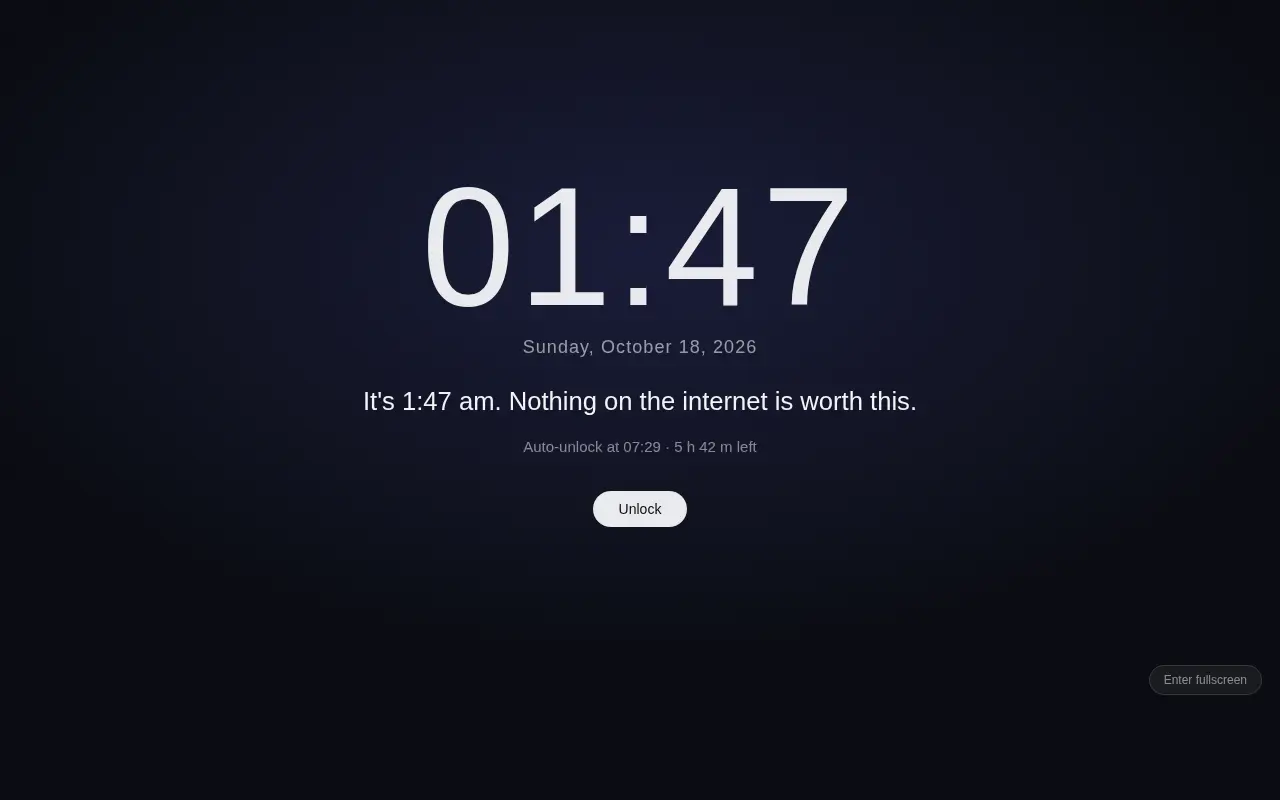
A locked screen showing a large clock at 01:47 over a soft aurora background

Two core features. A clear stopping time.

Choose scheduled closing to end your browser session, or scheduled tab locking to pause browsing.

01 · Scheduled Chrome closing

Choose a time such as 23:00 and enable auto-close. Chrome closes all its windows when due. Quick options set it for 30 minutes, 1 hour, or 2 hours from now. You can add a delay after the set time and a notification just before closing. The switch resets after it runs.
02 · Scheduled tab locking

Set a lock period such as 23:00–07:00, including overnight schedules. Open web pages and newly created tabs are redirected to the lock screen. Set an end time for automatic unlocking, or leave it empty to unlock manually. An optional password adds a step before unlocking.

Schedule a lock

Set a start and end time, even across midnight. Leave the end time empty to keep the lock active until you unlock it.

Lock after inactivity

Enable the screensaver after a chosen number of idle minutes. Without a password, a mouse click dismisses this idle lock.

Lock immediately

Open the extension popup and choose 15, 25, 45, or 60 minutes, or keep it locked until you unlock manually.

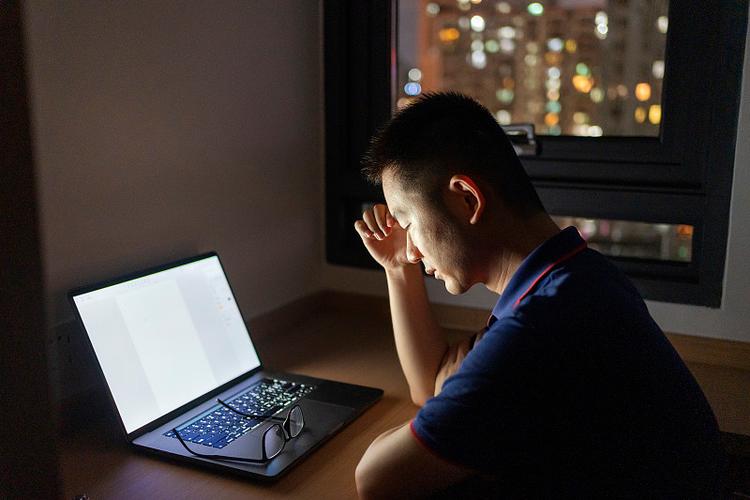
A tired man slumped at a laptop late at night, city lights in the window behind him

One more tab can wait. Keep the time you set for yourself.

Give your browsing a stopping point

A bedtime, a study session, or a short break — choose when browsing should stop.

End late-night scrolling

Set Chrome to close at 23:00, for example. All browser windows close when the timer fires, so save your work and finish browser downloads beforehand.

Protect a focus period

Schedule a tab lock for a study session or your bedtime. During the lock, existing web pages and newly opened tabs are sent to the lock screen.

Take a break from browsing

Start a 15, 25, 45, or 60-minute lock from the extension popup. You can also enable an idle screensaver for when you step away.

Two features, two choices: close Chrome or lock your tabs. Enable the option that fits your routine.

The extension works within Chrome. It does not shut down your computer or lock your operating system.

Three lock screens

Choose the appearance of your locked tabs: solid black, a minimal clock, or your own message.

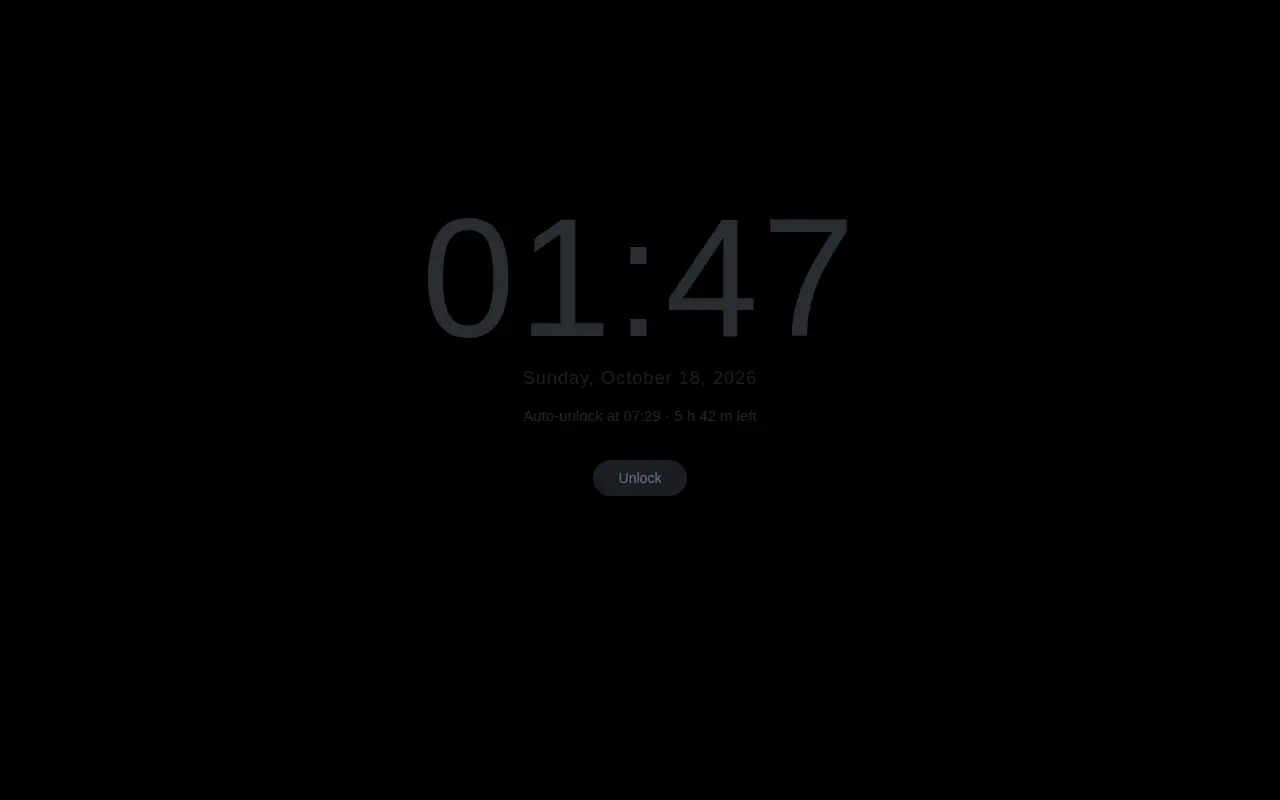
Solid black lock screen with a very faint clock

Solid black

A dark screen with a barely-there clock. The least stimulation possible.

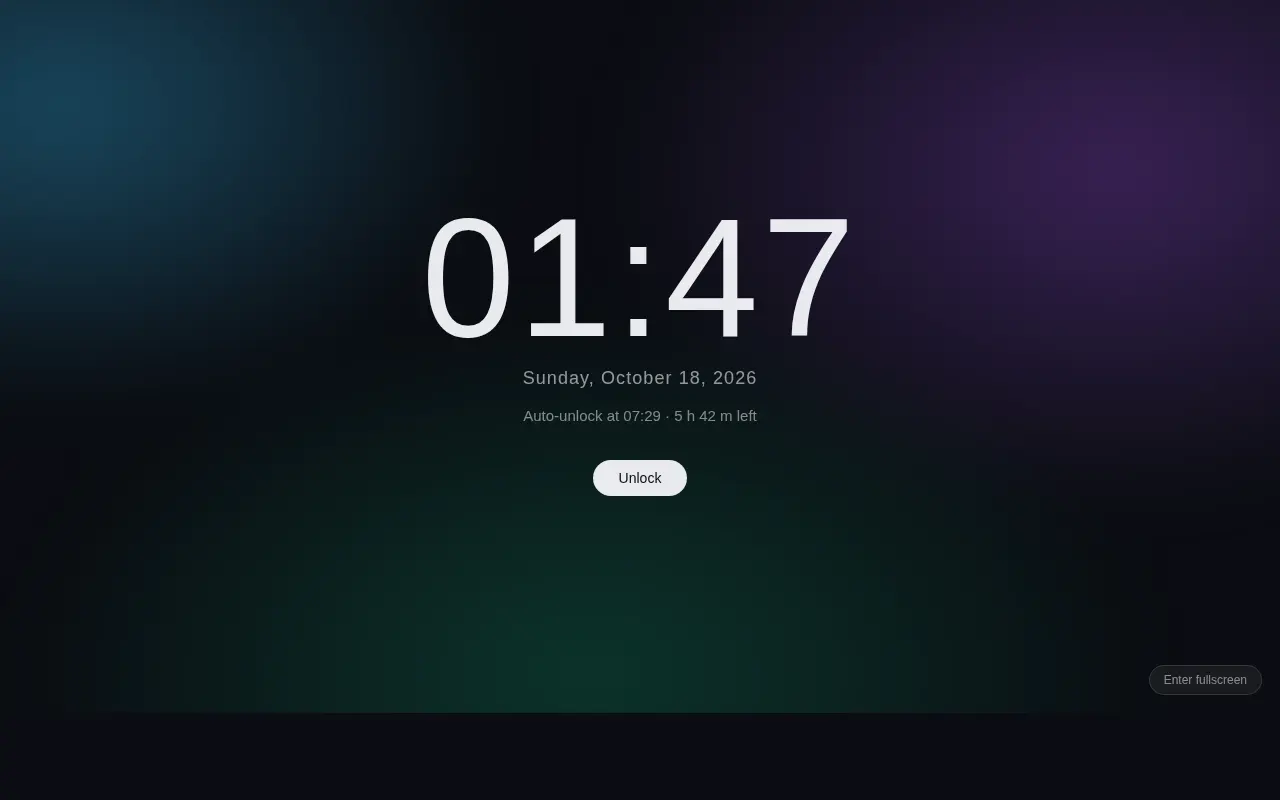
Minimal clock on an aurora glow background

Minimal clock

A large clock over an aurora background, with the time and date in view.

Lock screen showing a custom message

Your own message

Write a reminder such as “Time to rest” or “Back to work” for your lock screen.

Set it up in two tabs

Open the extension popup to configure closing and locking separately. Each feature starts only when enabled.

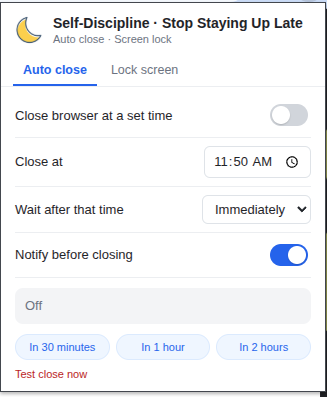
Settings tab for scheduled auto-close

Scheduled closing

Choose a closing time or a quick timer, a delay of 0, 30, 60, or 300 seconds, and whether to show a notification just before closing.

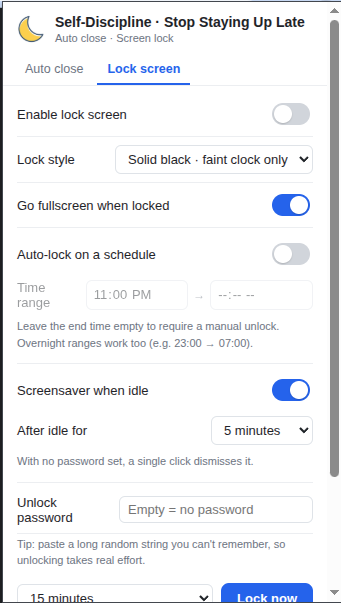
Settings tab for the lock screen

Tab locking

Choose a style, optional fullscreen, a lock schedule, an idle timer, and an optional unlock password. Start a timed lock here, too.

Works offline. Settings stay on your device.

No account or backend is needed. Settings and lock state are saved locally in Chrome.

  • No account, no sign-up, no server. There is no backend to talk to.
  • No analytics, no tracking, no telemetry. Nothing is measured or reported.
  • No content scripts. Locking redirects web pages to the extension’s lock screen; it does not inject scripts into page content.
  • No history, bookmarks, clipboard, cookies, or form data. It doesn't ask for them.
  • Your settings stay in your browser profile. They are never uploaded or shared.

A soft lock to help you keep your routine

Tab locking adds a pause before you continue browsing. It works within Chrome and does not lock other apps or the operating system.

So you should know upfront

  • Chrome internal pages such as chrome://extensions remain accessible, and you can disable or remove the extension there. Fullscreen can also be exited.
  • The optional unlock password is stored locally in plain text. It adds friction for self-discipline and is not designed to protect sensitive data.
  • Turning off the lock switch unlocks your tabs immediately. After a scheduled close runs, its switch turns off; enable it again for the next closing time.

How to install

  1. Add it from the Chrome Web StoreThen pin it to your toolbar so you can reach it in one click.
  2. Choose a closing time or a lock periodIn “Auto close”, choose when Chrome should close. In “Lock screen”, set the start and end of your tab lock.
  3. Enable the feature you needCheck your settings and turn on the relevant switch. Save browser work before a scheduled close; use the popup to adjust or disable the feature.
Add to Chrome No sign-up. Configure the timer and lock locally in Chrome.