
It cuts off work in progress
A build, a render, a sync, a long download — whatever is running is killed mid-way, with no chance to finish or clean up.
A server, a database, a backup, a long download, a remote session — something on that machine has to keep running, so scheduling a shutdown isn't an option. That doesn't mean you have to stay up with it.

It's 3 a.m. Your services are fine. You are not.
Because on a machine that is actually doing something, an automatic shutdown is destructive.
A build, a render, a sync, a long download — whatever is running is killed mid-way, with no chance to finish or clean up.
Backups, cron jobs, overnight batches. Shut the machine down and they quietly do not run at all.
SSH sessions, databases, web services — anything a teammate or another machine is depending on.
So the people who need those services never run shutdown timers at all — and the browser stays open until 3 a.m. instead.
This takes down only the part that is actually yours. The computer keeps running, your services keep running, your downloads keep going.
Both of them are decisions you make once, in the daytime, that still apply at 1 a.m.
Pick a time — 23:00, say. A few minutes before, you get a notification. At the time, the browser closes itself. An optional grace period gives you one last window if you still need to save something.
While a lock is active, every page you open is replaced by the extension's own page, so there is nothing left to browse. Three styles: plain black, a minimal clock, or a message you write yourself.
23:00 to 07:00, for example. Crossing midnight is handled correctly.
After N minutes of inactivity, the lock can come up on its own.
One click on the toolbar icon. Useful when “just one more tab” starts.
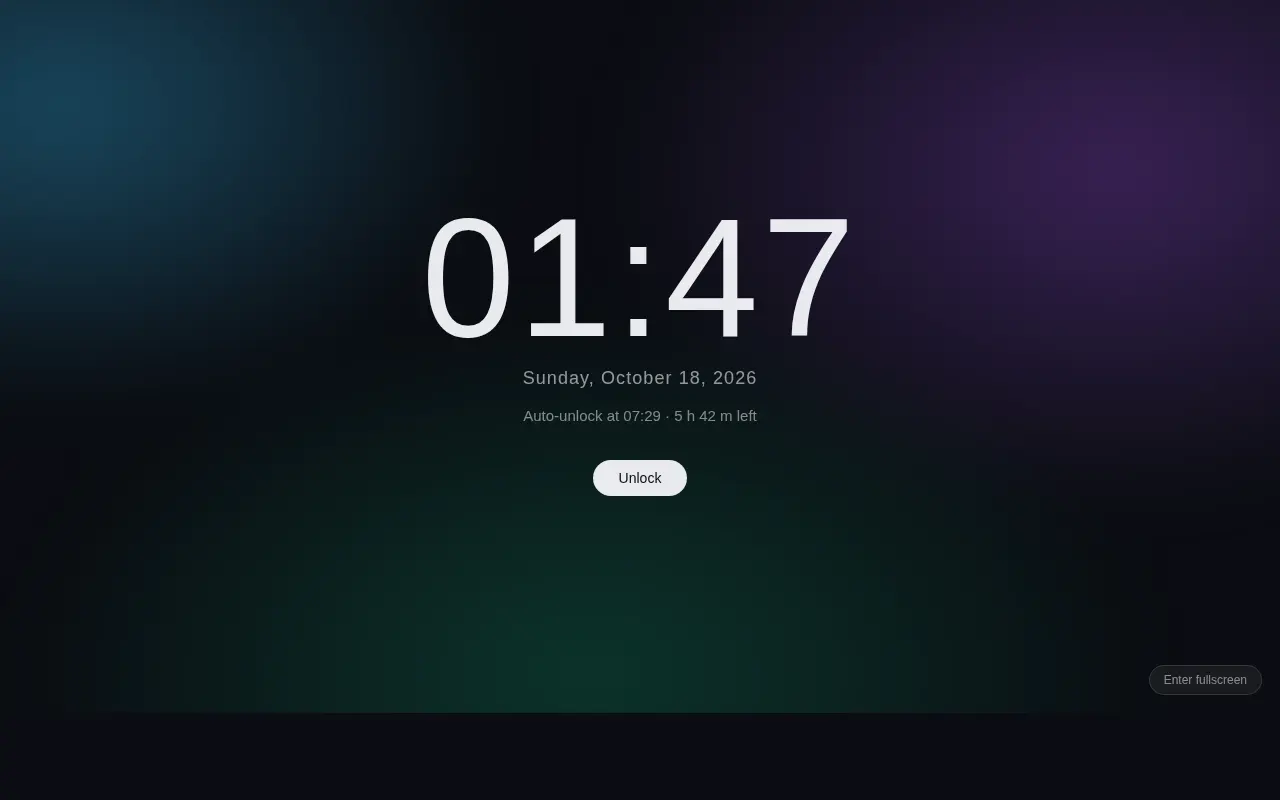
Rendered by the real extension, at 01:47 in the morning — the hour this is built for.
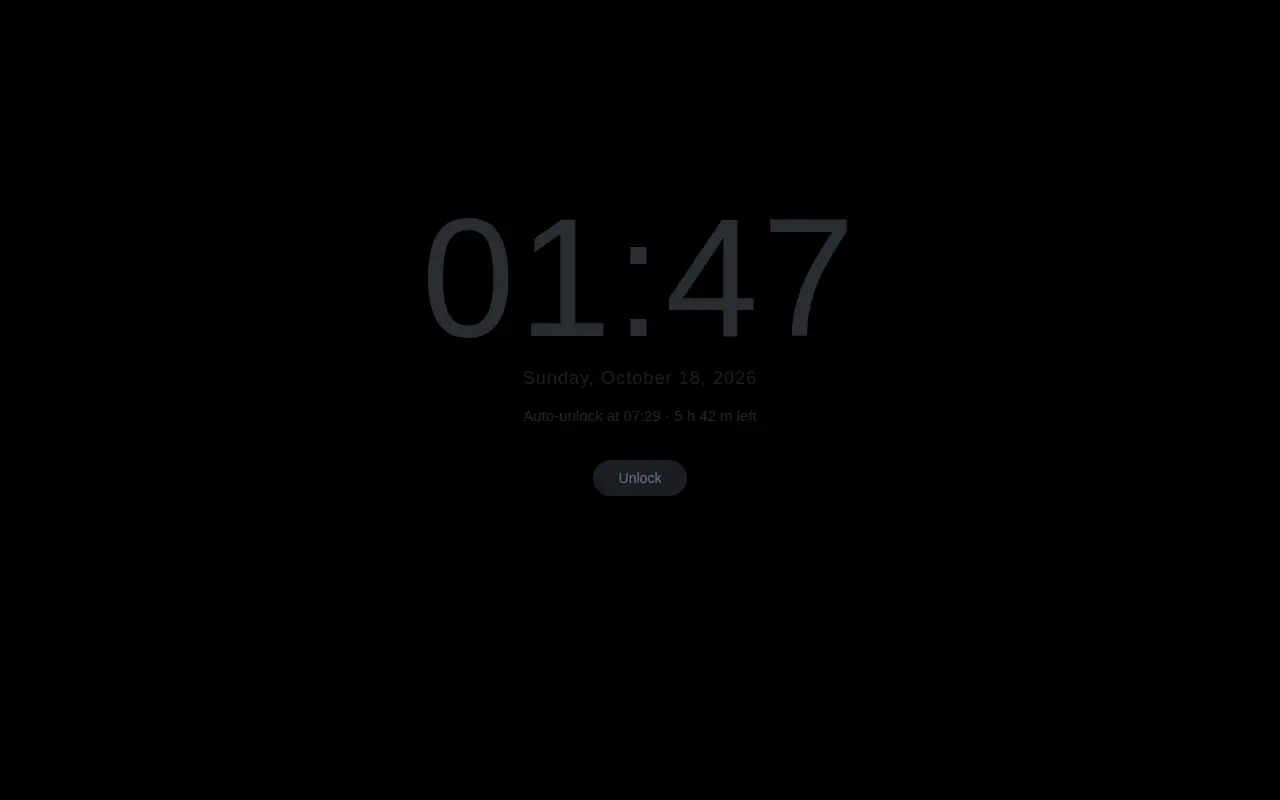
A dark screen with a barely-there clock. The least stimulation possible.
A large clock over a slow aurora glow. Tells you how long you have left.
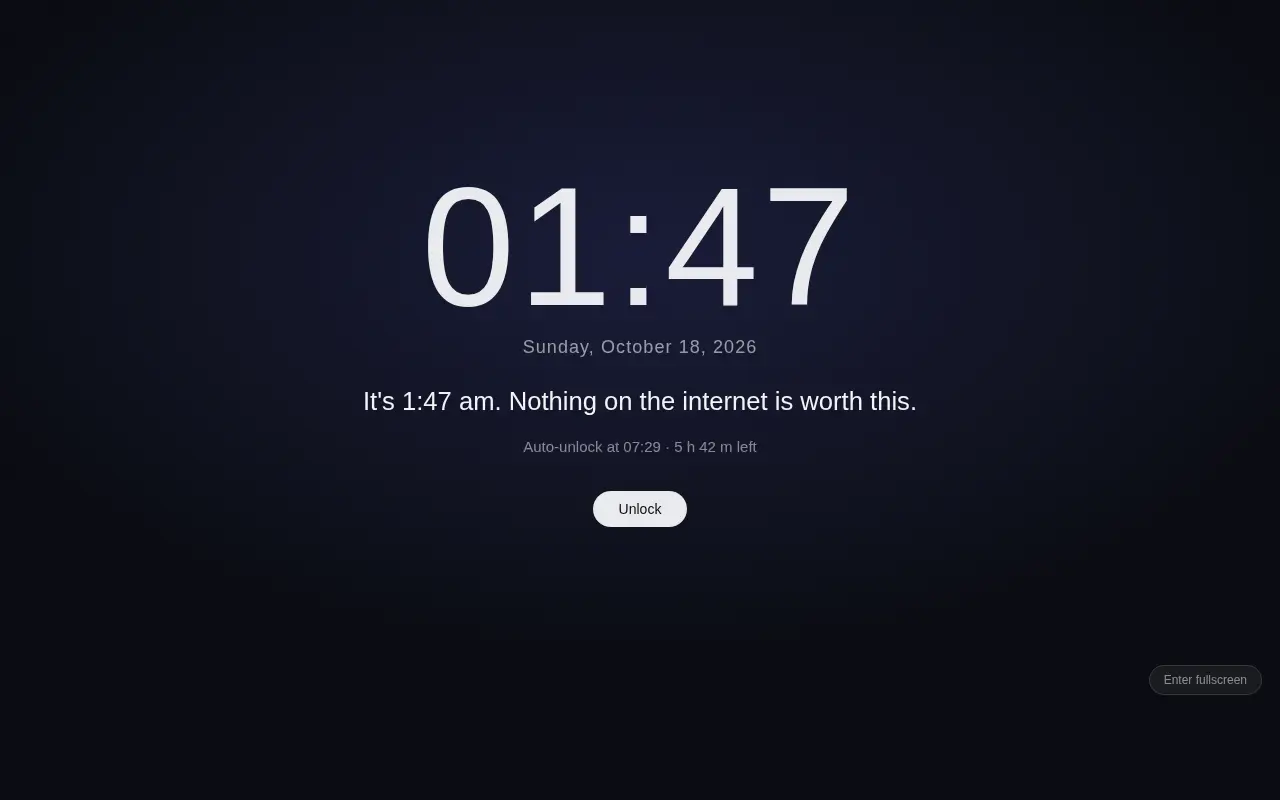
Whatever you want to be told at 1 a.m. Future you writes it.
No wizards, no dashboards. Nothing happens until you switch it on.
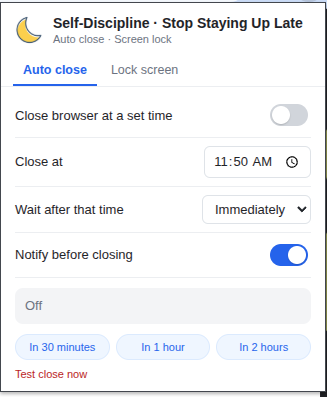
Set the time, the grace period, and whether you want a warning first.
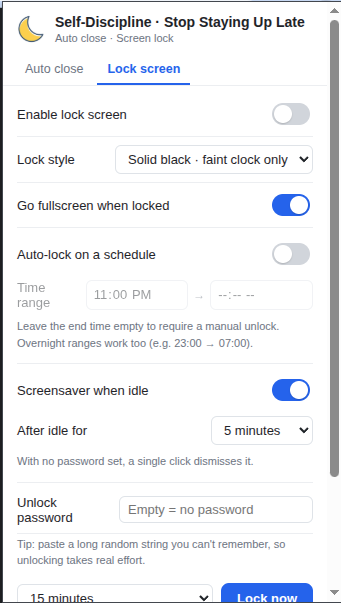
Style, fullscreen, schedule, idle timer, and an optional PIN to unlock early.
There is no backend. No network requests are made at all.
This is a tool for people who want help keeping a promise to themselves — not a way to take over someone else's computer.